- Home
- Mäklare som stöds
- Trading212
Skatt på Trading 212 2026
Räkna ut skatten på dina Trading 212-investeringar med Tax-Wizard. Exportera din historik år för år och få färdiga K4-rader till deklarationen 2026.
Senast uppdaterad: · Granskad av Tax-Wizard-teamet · Officiellt hjälpcenter för Trading 212 ↗
This guide is designed to assist anyone who have investments on Trading212 and is seeking clarity on how to pay taxes. The information provided here should be useful when calculating your Trading212 taxes. However, it’s important to supplement this guide with the tax regulations specific to your country.
If you need to calculate taxes for your Trading212 investments, you’re in the right place! There are several ways to do this, such as calculating taxes manually in Excel, using an automated tax tool like Tax-wizard, or hiring a tax professional. Your choice will often depend on your budget and preferences.
How to export your Trading212 history
Start by Login to your Trading212 account.
Use the hamburguer menu in your Trading212 account to access "History".
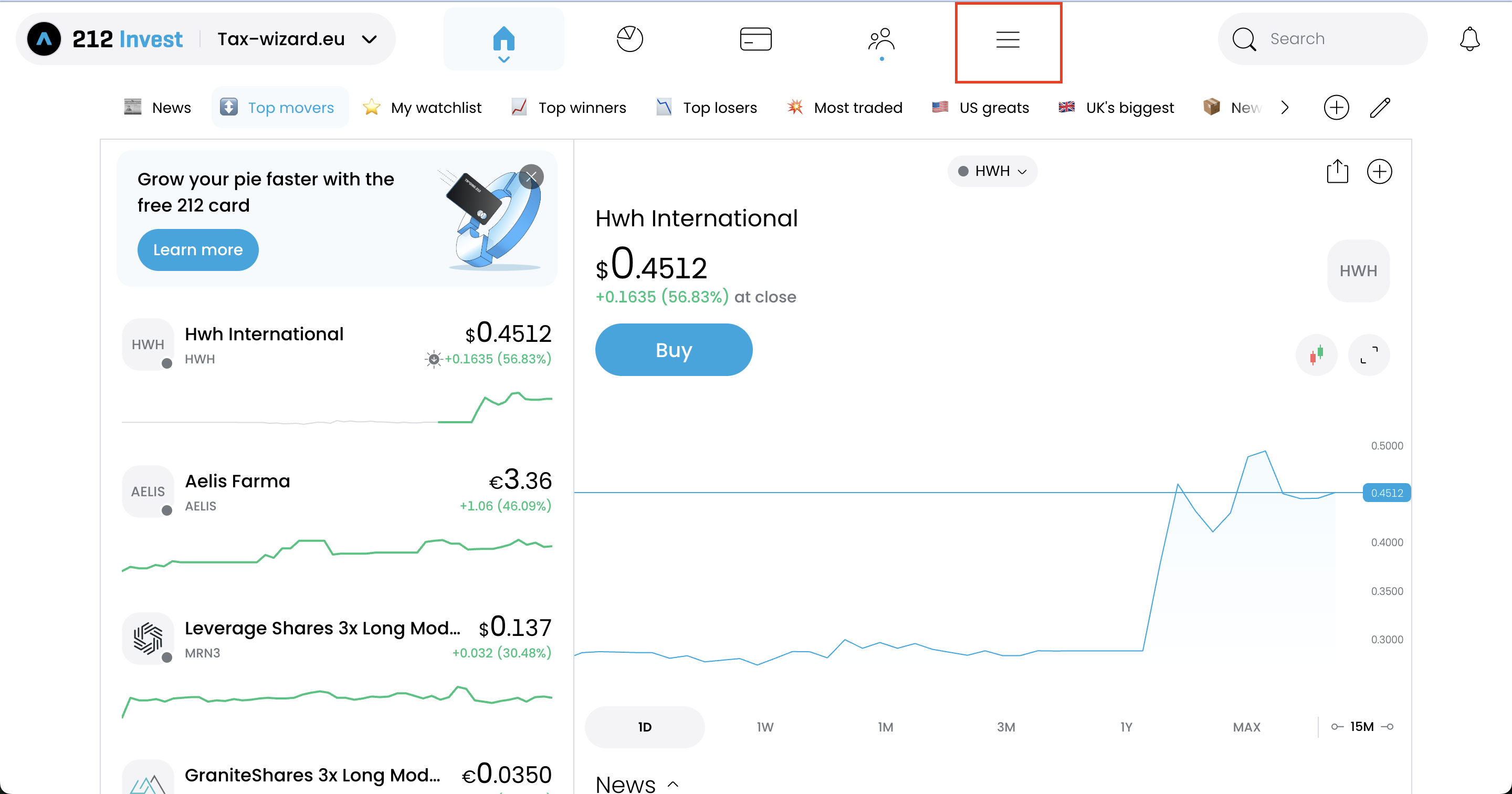
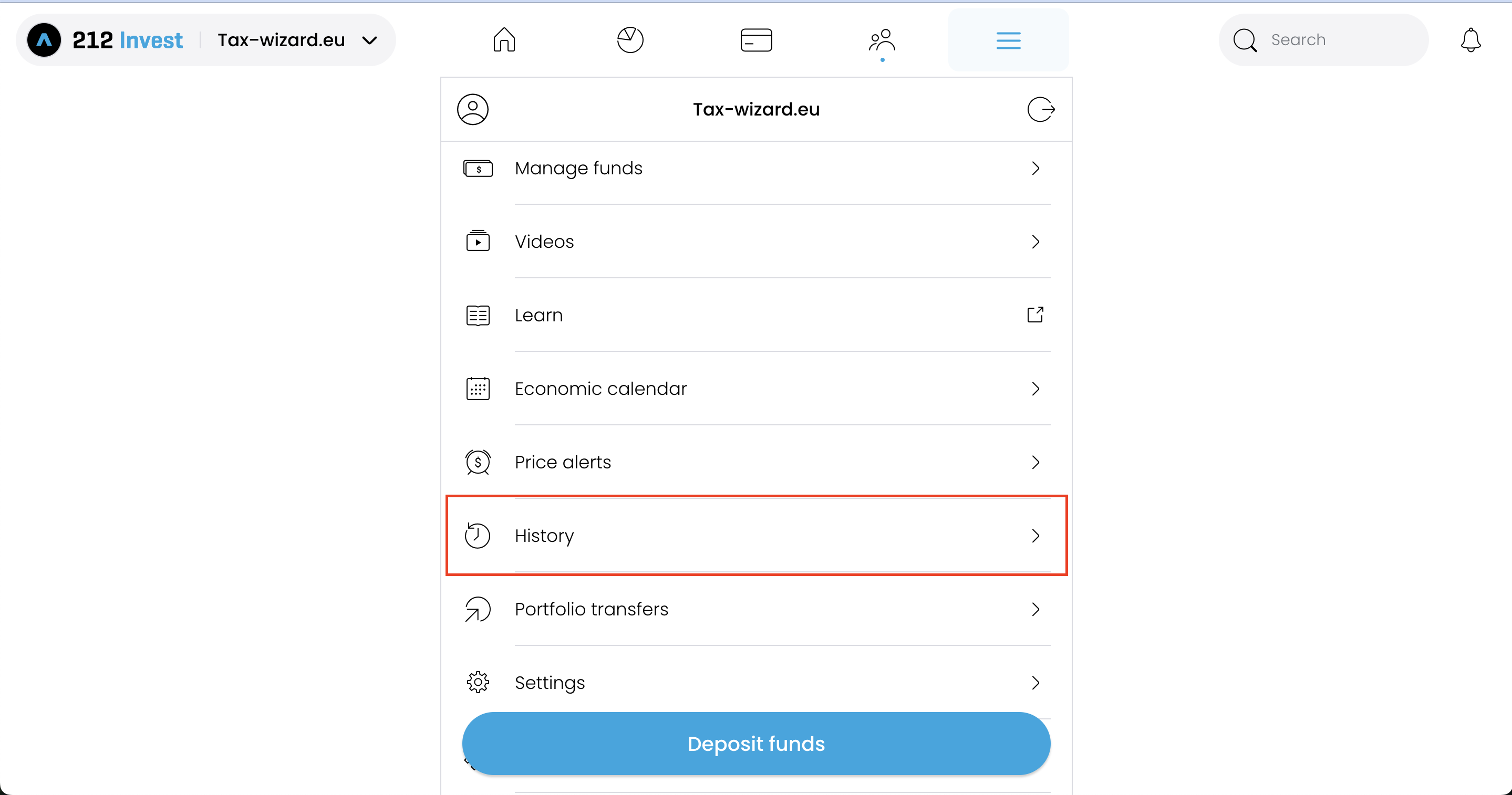
On the "History" page you should select the option on the top right corner with a download icon.
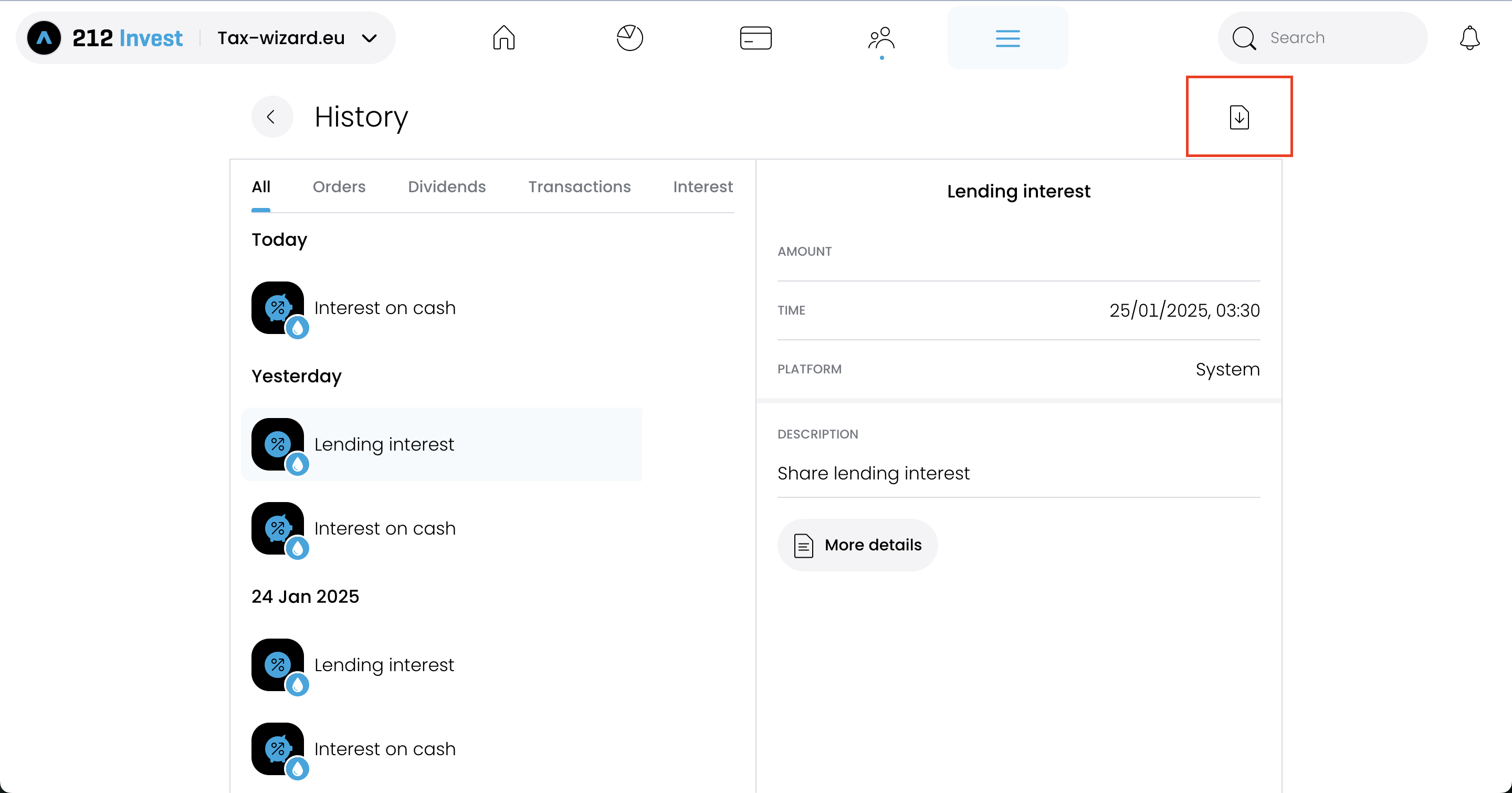
For the reports to be accurate you should download one file per each year you had your Trading212
account open.
After selecting each year, click on the "Export CSV" button to export the file.
How to upload multiple files to Tax-wizard?
You must submit all files at the same time for Tax-wizard to be able to process them together. Here are the instructions on how to upload multiple files simultaneously. Follow these steps:
- Windows
- 1. Click on one of the files you wish to select.
- 2. Hold down the Control (Ctrl) key.
- 3. While holding down the Control key, click on the other files you want to select.
- 4. Continue holding the Control key until you have selected all the desired files.
- Mac
- 1. Click on one of the files you wish to select.
- 2. Hold down the Command or Shift key.
- 3. While holding the Command or Shift key, click on the other files you want to select.
- 4. Continue holding the Command or Shift key until you have selected all the desired files.
By following these steps, you can ensure you have the correct files needed to use with Tax-wizard.
From here you can upload them to Tax-wizard and have your tax report ready in minutes.
How to handle Trading212 free shares
Trading212 occasionally rewards you with free (promotional) shares. When you later sell one of these shares, the exported CSV often does not include the original acquisition entry, so Tax-wizard has no purchase record to match the sale against. When this happens the share shows up as an incomplete transaction and its capital gain cannot be calculated correctly.
To fix this, after selecting Trading212 on the dashboard, click "Add missing free shares in the report" and fill in, for each free share: the ticker, the share price on the day you received it, the quantity you received, and the date you received it. Tax-wizard then creates the matching purchase entry so the cost basis and gains are calculated correctly.
Frequently asked questions
Why might Tax-wizard's figures differ from my Trading212 Annual Statement?
Several things can cause the two totals not to line up even when they start from the same trades:
- Cost-basis method. Trading212's Annual Statement uses average cost (the "Average Price" column is the running average of open shares). Tax-wizard lets you choose between FIFO, LIFO, average cost and the UK Section 104 method, with FIFO as the default since it is the method required in most European jurisdictions. For an instrument bought at different prices over time, different methods produce different per-trade gains.
- Currency conversion. Trading212 reports in the instrument's currency and only converts to your base currency once, at year-end. Tax-wizard applies the official European Central Bank rates required by tax law.
Can I reproduce the Annual Statement numbers in Tax-wizard?
Yes. On the dashboard, under "Calculation method", pick "Average cost" - that is the method Trading212 uses internally. The totals typically line up closely with the Annual Statement (small residual differences may remain due to currency conversion and fees).
Keep in mind that the method accepted on your tax return depends on your jurisdiction. Most European tax authorities mandate FIFO, so the official report you file should normally be produced with FIFO. The other options (LIFO, average cost, UK Section 104) are there for analysis and for users in jurisdictions where those methods apply - Italy, for example, mandates LIFO (art. 67, comma 1-bis TUIR).
Hur deklarerar jag mina Trading 212-investeringar i Sverige?
Trading 212 är en utländsk aktör och lämnar ingen kontrolluppgift till Skatteverket - dina affärer finns alltså inte i den förifyllda deklarationen, utan du måste lägga till dem själv.
- Varje avyttring redovisas på bilaga K4: marknadsnoterade aktier i avsnitt A och övriga tillgångar, bland annat krypto, i avsnitt D.
- Kapitalvinster beskattas med 30 %.
- Belopp i utländsk valuta räknas om till kronor med Riksbankens kurs på affärsdagen; K4-beloppen anges i hela kronor.
- Skatteverket beviljar automatisk avräkning av utländsk källskatt upp till 500 kr - över det beloppet begär du avräkning särskilt.
Vilken metod ska jag använda för omkostnadsbeloppet?
Genomsnittsmetoden är huvudregel enligt IL 48 kap. 7 § : omkostnadsbeloppet poolas per värdepapper över alla dina innehav, inte per enskilt köp. För marknadsnoterade aktier får du i stället välja schablonmetoden och ta upp 20 % av försäljningspriset som omkostnadsbelopp (IL 48 kap. 15 §), vilket lönar sig när underlaget saknas eller när värdet mångdubblats.
Förluster på marknadsnoterade aktier kvittas fullt ut mot aktievinster; det som återstår är avdragsgillt till 70 %. Därför ska vinster och förluster redovisas som separata rader - nettar du ihop dem förlorar du skillnaden mellan full kvittning och 70-procentig kvotering.
Mer om K4-avsnitten, kvittningsreglerna och avräkning av utländsk källskatt hittar du i den kompletta guiden till skatt på investeringar i Sverige. Med Tax-wizard laddar du upp Trading 212-filerna du exporterade ovan och får på några minuter färdiga K4-rader - och en SRU-fil du kan importera i Skatteverkets e-tjänst.
Hur mycket är din tid egentligen värd?
Tänk på värdet av din tid och tryggheten i att ha ett pålitligt och noggrant verktyg som sköter din skatterapportering
(betalningen täcker årets deklaration för 2025 och tidigare år, manuell förnyelse nästa år)
Premium
Alla funktioner, för Revolut, Degiro, eToro, XTB, Trading212, Interactive Brokers, Freedom24, Lightyear, Trade Republic, Coinbase, Robinhood Crypto,...
- Stöd för alla mäklare och valutor
- Automatisk beräkning av kapitalvinster
- Rapport med förvärv, avyttringar, utdelningar och räntor
- Rapport och statistik över öppna positioner
- Transaktions- och utdelningsstatistik
- Exportera öppna positioner till Yahoo Finance
Business
Alla premiumfunktioner, för revisorer, finansiella rådgivare, skattekonsulter eller andra yrkesverksamma och företag som vill använda Tax-Wizard för flera klienter.
- Stöd för alla mäklare och valutor
- Automatisk beräkning av kapitalvinster
- Rapport med förvärv, avyttringar, utdelningar och räntor
- Rapport och statistik över öppna positioner
- Transaktions- och utdelningsstatistik
- Exportera öppna positioner till Yahoo Finance