- Home
- Tuetut välittäjät
- Trading212
Näin hoidat Trading212-verot 2026 - Tax-Wizard-opas
Laske Trading212-sijoitustesi verot helposti Tax-Wizardilla. Automatisoi Trading212:n veroraportointi ja yksinkertaista vuoden 2026 veroilmoitusta.
Viimeksi päivitetty: · Tax-Wizard-tiimin tarkistama · Virallinen Trading 212-tukikeskus ↗
This guide is designed to assist anyone who have investments on Trading212 and is seeking clarity on how to pay taxes. The information provided here should be useful when calculating your Trading212 taxes. However, it’s important to supplement this guide with the tax regulations specific to your country.
If you need to calculate taxes for your Trading212 investments, you’re in the right place! There are several ways to do this, such as calculating taxes manually in Excel, using an automated tax tool like Tax-wizard, or hiring a tax professional. Your choice will often depend on your budget and preferences.
How to export your Trading212 history
Start by Login to your Trading212 account.
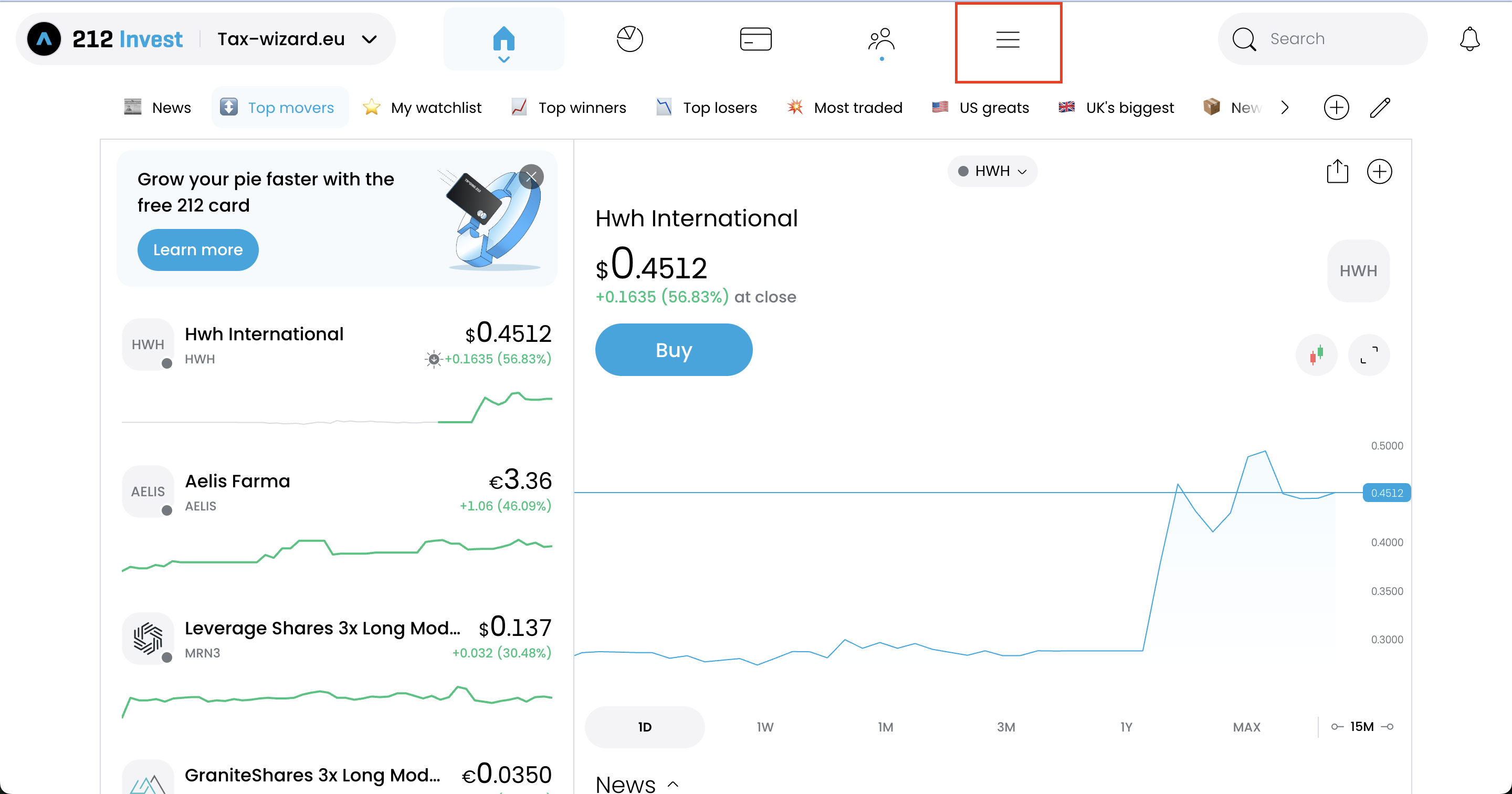
Use the hamburguer menu in your Trading212 account to access "History".
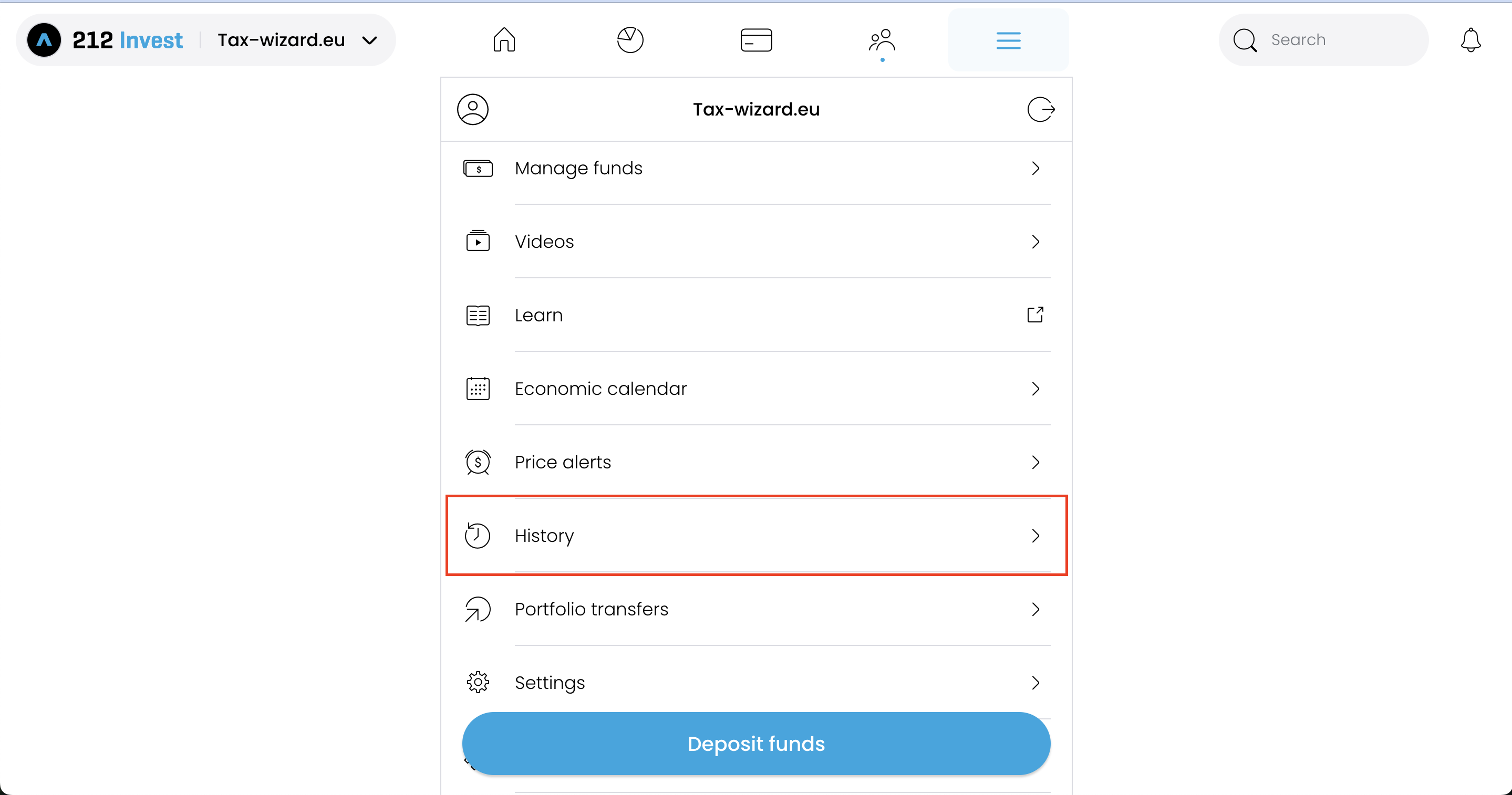
On the "History" page you should select the option on the top right corner with a download icon.
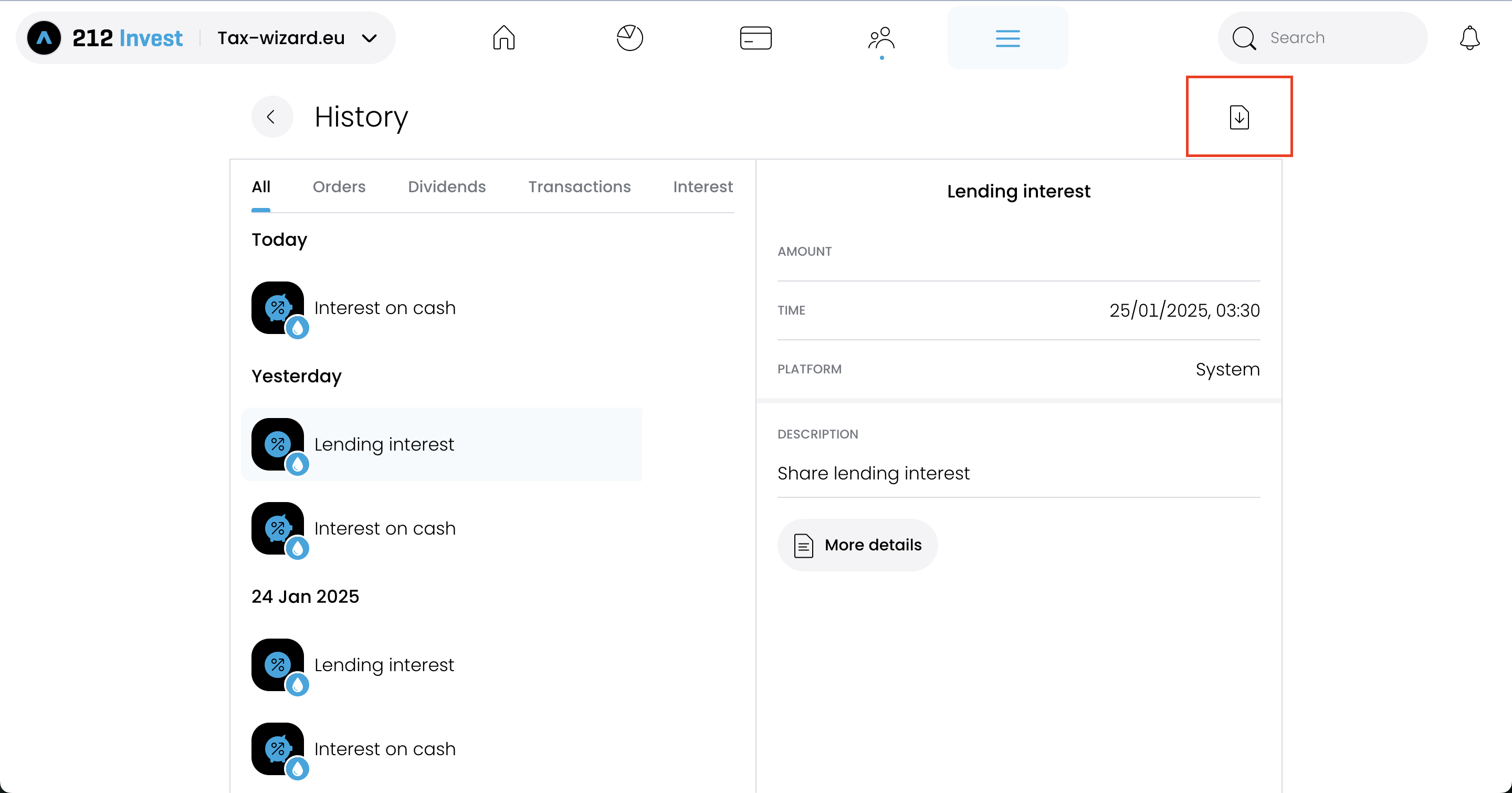
For the reports to be accurate you should download one file per each year you had your Trading212
account open.
After selecting each year, click on the "Export CSV" button to export the file.
How to upload multiple files to Tax-wizard?
You must submit all files at the same time for Tax-wizard to be able to process them together. Here are the instructions on how to upload multiple files simultaneously. Follow these steps:
- Windows
- 1. Click on one of the files you wish to select.
- 2. Hold down the Control (Ctrl) key.
- 3. While holding down the Control key, click on the other files you want to select.
- 4. Continue holding the Control key until you have selected all the desired files.
- Mac
- 1. Click on one of the files you wish to select.
- 2. Hold down the Command or Shift key.
- 3. While holding the Command or Shift key, click on the other files you want to select.
- 4. Continue holding the Command or Shift key until you have selected all the desired files.
By following these steps, you can ensure you have the correct files needed to use with Tax-wizard.
From here you can upload them to Tax-wizard and have your tax report ready in minutes.
How to handle Trading212 free shares
Trading212 occasionally rewards you with free (promotional) shares. When you later sell one of these shares, the exported CSV often does not include the original acquisition entry, so Tax-wizard has no purchase record to match the sale against. When this happens the share shows up as an incomplete transaction and its capital gain cannot be calculated correctly.
To fix this, after selecting Trading212 on the dashboard, click "Add missing free shares in the report" and fill in, for each free share: the ticker, the share price on the day you received it, the quantity you received, and the date you received it. Tax-wizard then creates the matching purchase entry so the cost basis and gains are calculated correctly.
Frequently asked questions
Why might Tax-wizard's figures differ from my Trading212 Annual Statement?
Several things can cause the two totals not to line up even when they start from the same trades:
- Cost-basis method. Trading212's Annual Statement uses average cost (the "Average Price" column is the running average of open shares). Tax-wizard lets you choose between FIFO, LIFO, average cost and the UK Section 104 method, with FIFO as the default since it is the method required in most European jurisdictions. For an instrument bought at different prices over time, different methods produce different per-trade gains.
- Currency conversion. Trading212 reports in the instrument's currency and only converts to your base currency once, at year-end. Tax-wizard applies the official European Central Bank rates required by tax law.
Can I reproduce the Annual Statement numbers in Tax-wizard?
Yes. On the dashboard, under "Calculation method", pick "Average cost" - that is the method Trading212 uses internally. The totals typically line up closely with the Annual Statement (small residual differences may remain due to currency conversion and fees).
Keep in mind that the method accepted on your tax return depends on your jurisdiction. Most European tax authorities mandate FIFO, so the official report you file should normally be produced with FIFO. The other options (LIFO, average cost, UK Section 104) are there for analysis and for users in jurisdictions where those methods apply - Italy, for example, mandates LIFO (art. 67, comma 1-bis TUIR).
Miten ilmoitan Trading 212-sijoitukseni OmaVerossa?
Trading 212 on ulkomainen välittäjä: se ei raportoi tietojasi Verohallinnolle eivätkä tulot näy esitäytetyllä veroilmoituksella. Sinun on lisättävä ne itse OmaVerossa omaan henkilökohtaiseen määräpäivääsi mennessä (huhtikuussa). Veroilmoituksella:
- Luovutusvoitot ja -tappiot ilmoitetaan OmaVeron luovutusvoitto-osiossa hankintaerittäin (paperilla lomake 9A): myyntipäivä, hankintapäivä, myyntihinta, kulut ja hankintameno - tai hankintameno-olettama (20 % myyntihinnasta, 40 % kun omistus on kestänyt vähintään 10 vuotta), jos se on edullisempi (TVL 46.1 §).
- Ulkomaiset osingot ja korot ilmoitetaan maittain (lomake 16B): pörssiyhtiöiden osingoista veronalaista on 85 %, ja ulkomainen lähdevero hyvitetään enintään verosopimuksen mukaiseen määrään asti (yleensä 15 %) - ylimenevä osa on perittävä takaisin lähdevaltiolta.
- Laskentajärjestys on FIFO koko historiasta, myös aiempien vuosien ostoista (TVL 47.4 §, KHO 2024:123).
- Valuuttamääräiset summat muunnetaan euroiksi kunkin tapahtumapäivän kurssilla: hankintameno hankintapäivän ja myyntihinta myyntipäivän EKP-kurssilla.
- Jos vuoden kaikkien luovutusten myyntihinnat ovat yhteensä enintään 1 000 €, voitot ovat verovapaita (TVL 48.6 §) - raja on kynnys, ei vähennys.
Lähettääkö Trading 212 veroraportin Suomeen?
Trading 212 ei tuota suomalaista OmaVero-valmista veroraporttia. Vie koko historiasi yllä olevilla ohjeilla ja lataa tiedostot Tax-Wizardiin: luovutusvoitot lasketaan FIFO-menetelmällä, jokaiselle erälle valitaan edullisempi todellinen hankintameno tai hankintameno-olettama, summat muunnetaan euroiksi ja tulokseksi saat lomakkeiden 9A, 9 ja 16B mukaiset valmiit luvut sekä arvion 30 %/34 %:n pääomatuloverosta.
Täydelliset säännöt (tappioiden vähentäminen, 30 %/34 %:n verokannat, CFD-tappioiden vähennyskelvottomuus ja täyttöesimerkit) löydät Suomen sijoitusverotuksen oppaasta. Tax-Wizardilla lataat yllä viedyt Trading 212-tiedostot ja saat minuuteissa valmiit luvut jokaiseen OmaVeron kohtaan.
Kuinka arvokasta aikasi todella on?
Mieti, mikä on aikasi arvo ja millainen mielenrauha syntyy siitä, että käytössäsi on luotettava ja tarkka työkalu veroraportointiin
(maksu kattaa tämän vuoden ilmoituksen vuodelle 2025 sekä aiemmat vuodet, uusinta ensi vuonna manuaalisesti)
Premium
Kaikki ominaisuudet Revolutille, Degirolle, eTorolle, XTB:lle, Trading212:lle, Interactive Brokersille, Freedom24:lle, Lightyearille, Trade Republicille, Coinbaselle, Robinhood Cryptolle,...
- Tuki kaikille välittäjille ja valuutoille
- Luovutusvoittojen automaattinen laskenta
- Raportti hankinnoista, luovutuksista, osingoista ja korkotuloista
- Avointen positioiden raportti ja tilastot
- Transaktio- ja osinkotilastot
- Avointen positioiden vienti Yahoo Financeen
Business
Kaikki premium-ominaisuudet kirjanpitäjille, talousneuvojille, verokonsulteille tai muille ammattilaisille ja yrityksille, jotka haluavat käyttää Tax-Wizardia useille asiakkaille.
- Tuki kaikille välittäjille ja valuutoille
- Luovutusvoittojen automaattinen laskenta
- Raportti hankinnoista, luovutuksista, osingoista ja korkotuloista
- Avointen positioiden raportti ja tilastot
- Transaktio- ja osinkotilastot
- Avointen positioiden vienti Yahoo Financeen